VegaFunded · Broker portal
Italiano English

Official guide

Register & verify on my.vegafunded.com

This guide is for the broker portal (trading access, documents, profile). It does not cover prop challenge checkout at app.vegafunded.com.

Go to my.vegafunded.com → login / register
Typical time: 10–20 minutes with your ID and a selfie ready. After verification, your profile moves from INCOMPLETE to complete and broker features such as deposits unlock.

Phase 1

Create your account

1

Sign up (Register tab)

Open my.vegafunded.com/auth/login and select Register. Enter your first and last name as shown on your ID, a working email, phone with the correct country code, and a strong password.

  • Names must match what you submit in Sumsub later.
  • If you have a partner code, expand “I have a partner code” before submitting.
  • Accept the client agreements and complete registration.
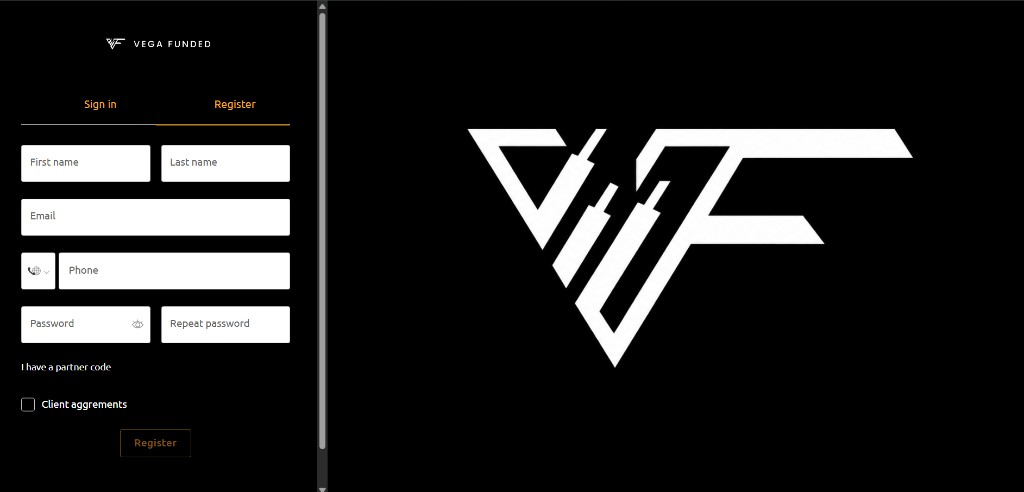
Register form

Phase 2

Identity verification (Sumsub)

2

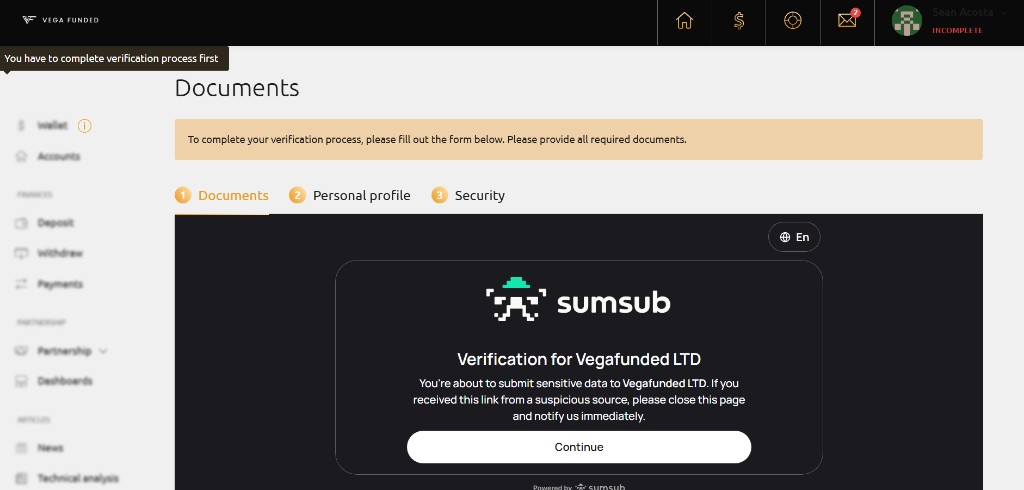
Open Documents

After login your profile shows INCOMPLETE until you finish three portal steps: Documents → Personal profile → Security. On Documents, open the Sumsub widget and tap Continue.

  • Wallet and some actions stay limited until KYC is approved.
  • Use only official URLs on my.vegafunded.com.
Documents and Sumsub
3

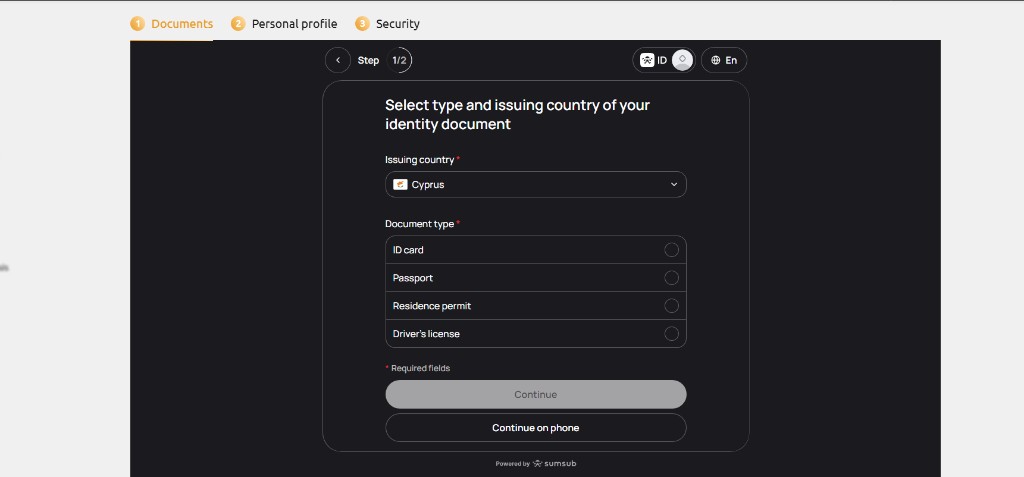
Issuing country & document type

Sumsub step 1/2: choose Issuing country and Document type (passport, ID card, residence permit, or driver’s license if accepted).

Document type selection

Tip: Use a valid, unexpired document with all corners visible.

4

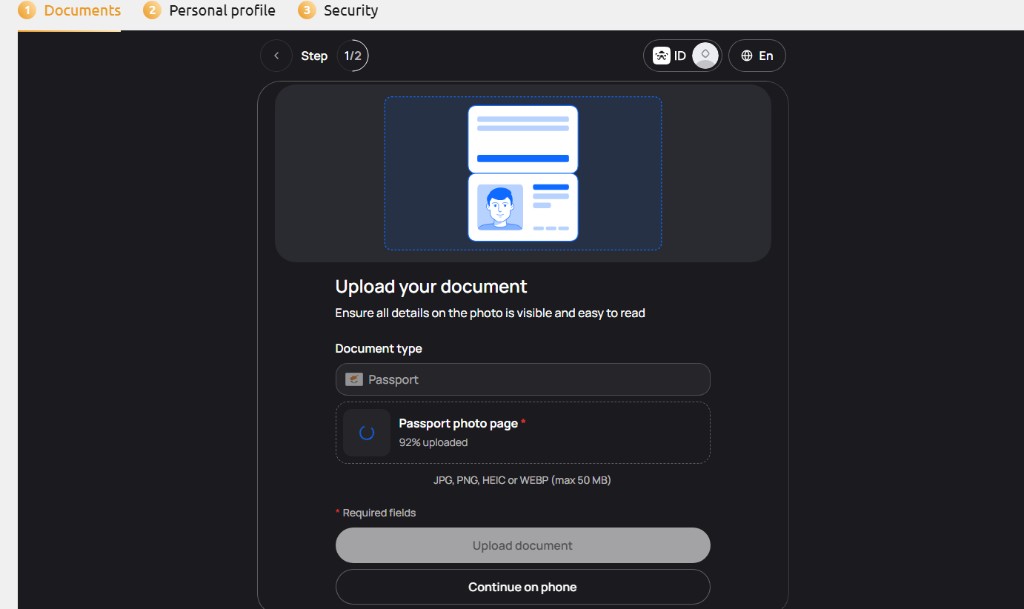
Upload your document

Take or upload the main ID page (e.g. passport photo page). Accepted: JPG, PNG, HEIC, WEBP — up to 50 MB. Wait until the upload reaches 100%.

Use Continue on phone if you prefer to finish on mobile.

Document upload
5

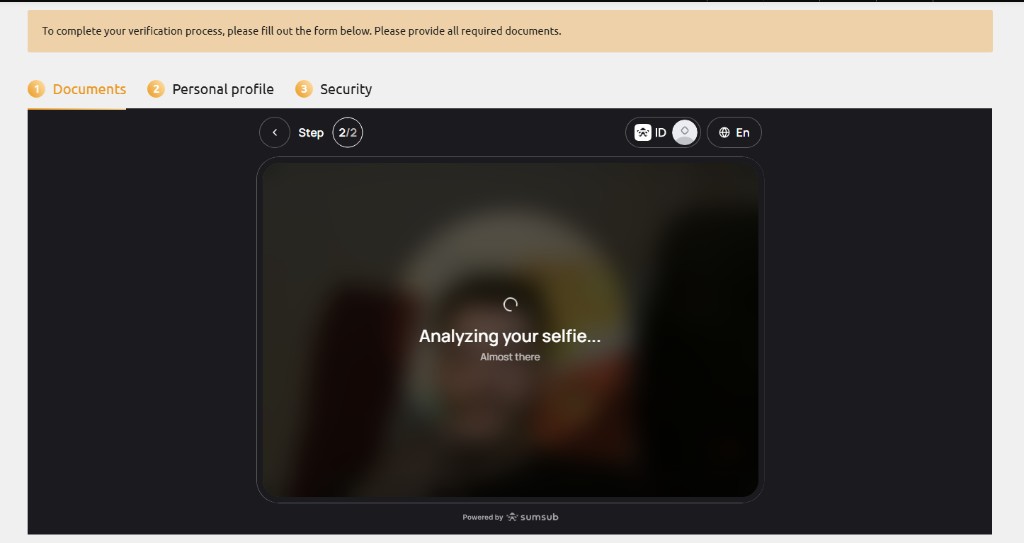
Selfie & liveness check

Sumsub step 2/2: follow the selfie instructions. Review may take a few minutes (“Analyzing your selfie…”).

  • Front lighting, face centered, no dark glasses or hats.
  • If rejected, retry with a neutral background and even light.
Selfie verification

Phase 3

Personal profile

6

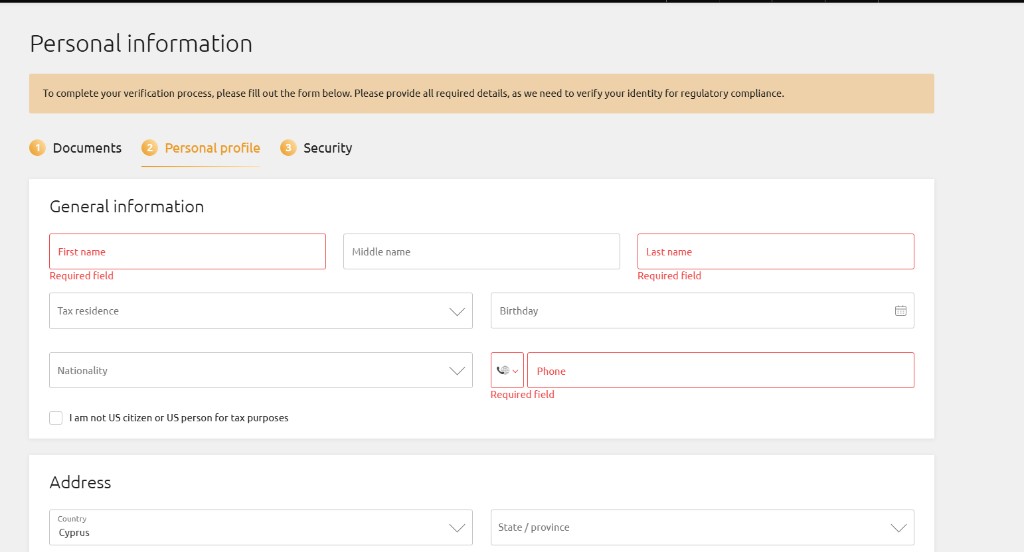
General information

Under Personal profile, complete General information: name, tax residence, date of birth, nationality, and phone. Required empty fields stay highlighted until filled.

If you are not a US person for tax purposes, check the dedicated declaration.

General information form
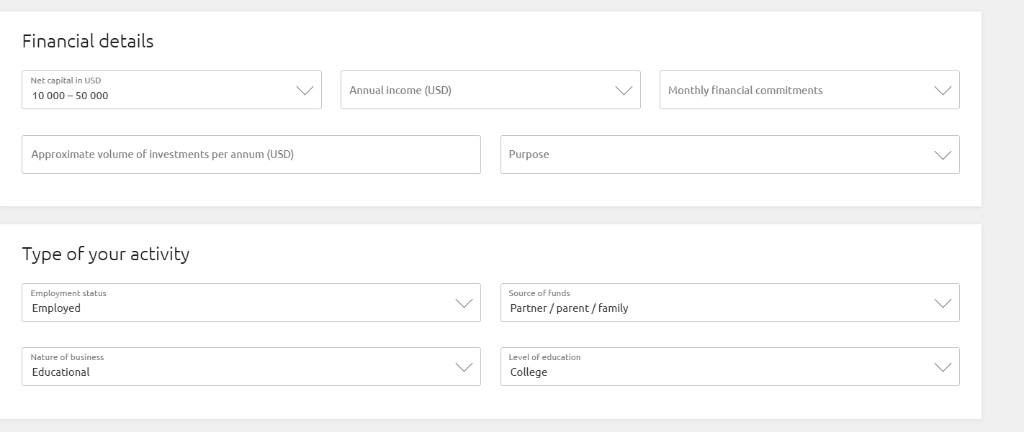
7

Activity & source of funds

Fill in Type of your activity: employment status, source of funds, business nature, and education level. Answers must be accurate and consistent for compliance.

Type of activity
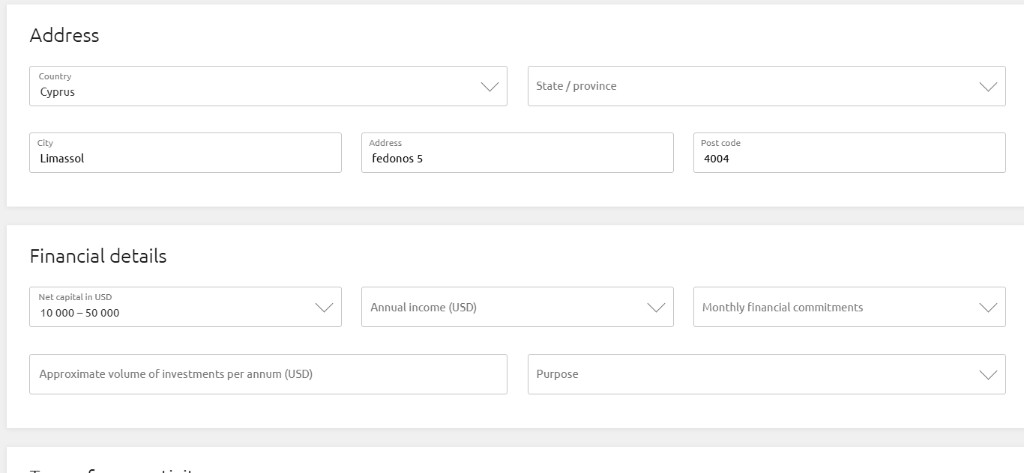
8

Address & financial profile

Enter your full address and Financial details: net capital, annual income, monthly commitments, approximate annual investment volume, and account purpose.

Address and financial details
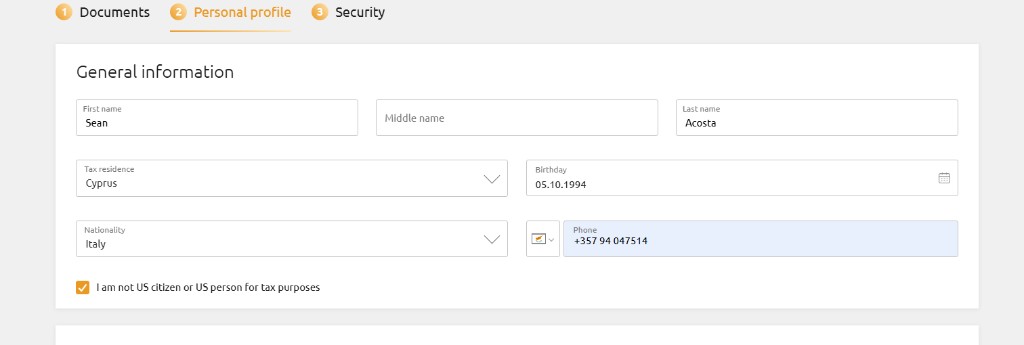
9

Review and save

Before moving to Security, review every field — they must match your Sumsub documents. Save the profile; Documents should show as completed in the flow.

Completed profile example

Phase 4

Security

10

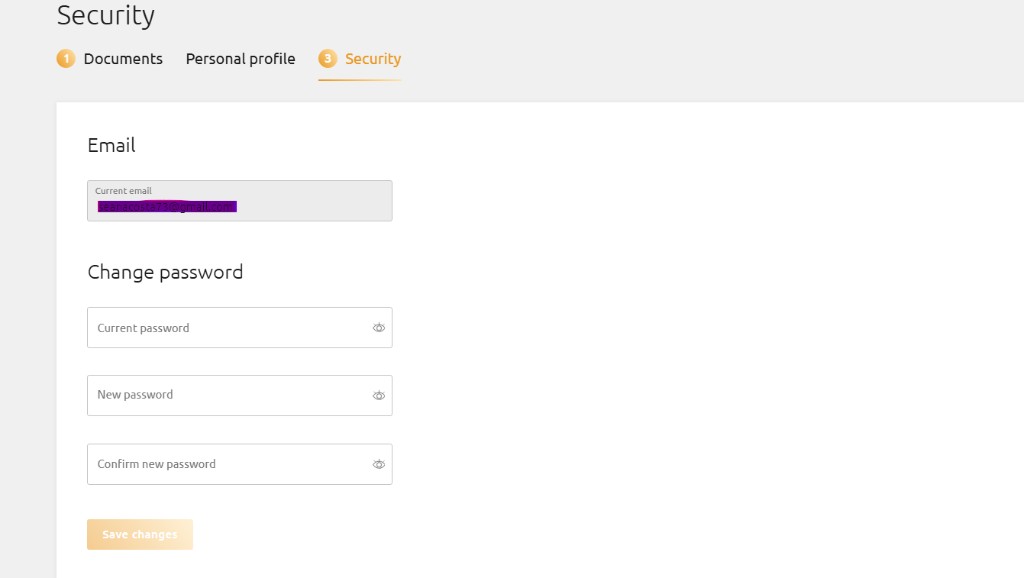
Email & password

On Security, confirm your email and set or update your password (Current → New → Confirm), then Save changes.

With a complete profile you can use broker features enabled on your account (deposits, trading, etc.). Enable 2FA in the same area if offered.

Security page